
How to Use Snapchat Filters on Zoom in 2026
If you are someone who wanted to use cool face filters or fun camera effects while joining online meetings, then you know that some people turn to Snapchat to find ways to use its filters on Zoom. However, if you’ve tried with any of these guides and it didn’t work recently, it’s because something big has changed in 2023, the Snap Camera, the desktop application that allowed you to use Snapchat Lenses, has been discontinued by its creators at Snap Inc., so this method won’t work anymore.
Check: Snapchat Story Viewer
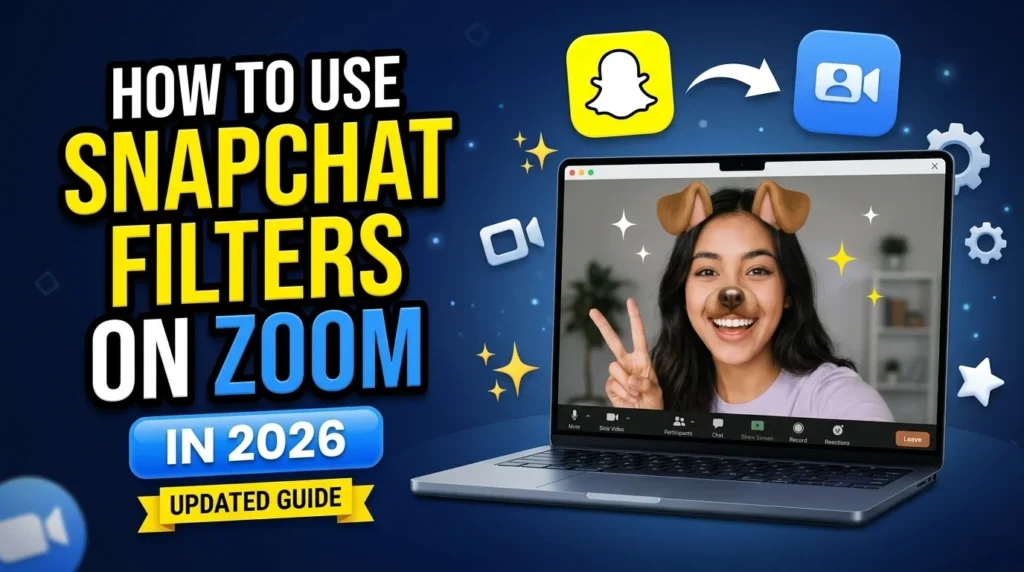
Luckily for you, there are still several other methods available in 2026 that would let you enjoy using Snapchat-style AR filters while on a video call. This guide will inform you about the changes that happened and the reasons why some guides do not work anymore as well as give you some methods on how to achieve your goal.
Can You Still Use Snapchat Filters on Zoom?
Answer: Yes, but not through the Snap Camera application.
Most How-To guides online suggest downloading the Snap Camera and using it as a software for Zoom. However, this method has become outdated with the official discontinuation of the application in 2023.
Snap Camera is no longer supported and updated officially by Snapchat. Hence it is unsafe and outdated for the current versions of Windows and Mac OS.
Instead, consider using Zoom’s built-in filters, AI webcam software, or other virtual camera apps that offer similar functions. All the alternatives above are up-to-date and widely supported by the newest versions of Zoom.
If you want to spice up your video conferencing or make your appearances on camera more presentable, you can use any of the suggested methods. They are all efficient and modern substitutes for the Snap Camera, if you want to use Snapchat filters on Zoom.
Nevertheless, we strongly advise you not to download the unofficial versions of the Snap Camera from untrusted websites. They might be used for malicious activity or contain viruses.
Why Was Snap Camera Discontinued?
Snap Camera is a desktop application that enables its users to engage with the famous Snapchat Lenses. The application was mainly used by content creators, students, and remote workers who used it in combination with video conferencing software such as Zoom, Microsoft teams, Skype, Google meet, and OBS Studio.
The parent company decided to retire the application because it had lost its relevance, and thus it ceased to receive updates after January 2023.
Therefore, it is possible that you may encounter such problems as
- Zoom not detecting your camera
- filters not showing up,
- a black screen,
- incompatibility with the latest Windows or Zoom updates,
- random freezing or crashing during video calls.
Also, if you ever stumble upon a YouTube tutorial video where someone is advising to install the application, be careful, as this may be misleading since the software is officially discontinued.
Why Do People Use Filters in Zoom Meetings?
Camera filters aren’t just about funny faces or entertaining effects. Many people use them to improve their overall video call experience.
Improving Your Looks
There are some filters in a camera that can make you look good with lighter shades, removing blemishes, or making the background lit.
Making the Background Clean
Using the filters can help you if you are in a home environment and you need to attend a conference call and do not want others to see your messy house.
Making Calls Interesting
If you are hosting a conference call, making a video, or even just having a simple video chat with your friends you can use filters to liven up your calls.
Expressing Yourself
With the different types of filters available in Augmented Reality we can express ourselves during a video chat, conference call, or video. With the filters you can add your personality, use holiday specific effects, or even make animations while still being able to conduct business and look professional.
Making Content Look Better
Content creators use camera effects when making tutorials, vlogs, interviews, and conference calls to improve the quality and make it more pleasing to the eye.
Best Ways to Get Snapchat-Style Filters on Zoom
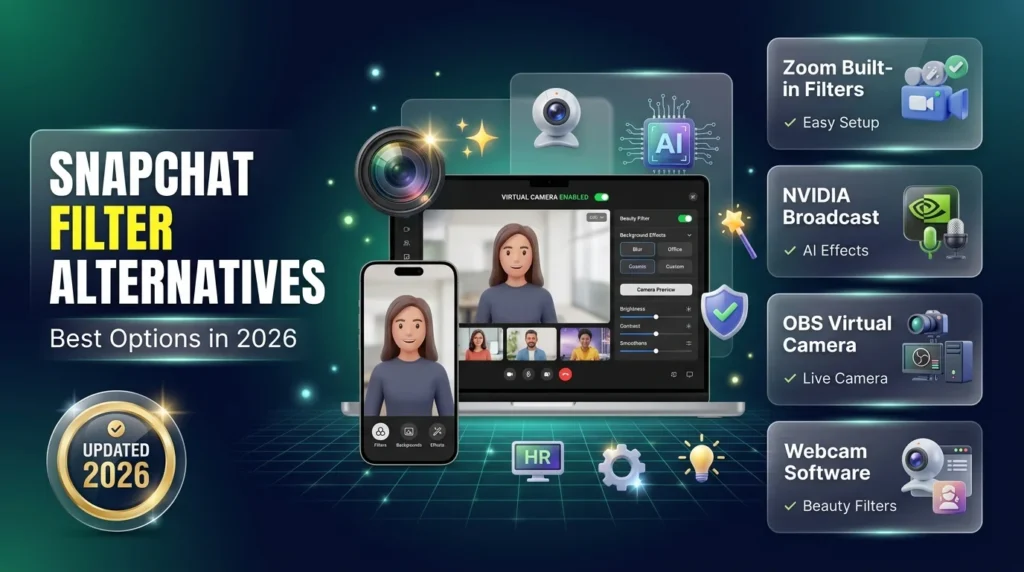
Although the original Snap Camera is no longer available, several modern alternatives provide similar features.
1. Zoom’s Built-in Filters
The Zoom brand provides its own set of appearance filters, virtual backgrounds, avatars, and lighting options. All of these are easily turned on within the application and require no extra software to function, making them the most straightforward choice.
2. NVIDIA Broadcast
If the user’s PC graphics card is compatible, NVIDIA Broadcast is another easy option. It utilizes artificial intelligence to offer background blurring, eye contact enhancement, framing assistance, and noise reduction – all without needing Snapchat’s filters.
3. OBS Studio with Virtual Camera
OBS Studio is a popular program among streamers and content creators, and for good reason – it can utilize a Virtual Camera to overlay effects, images, and even multiple scenes and cameras before sending the feed to another application, such as Zoom.
4. Webcam Software
Most webcam manufacturers, such as Logitech and Dell, offer their own set of software which can enhance the appearance of the webcam feed, with options including beauty filters and lighting adjustment.
How to Set Up Camera Effects for Zoom
Setting up modern camera effects is straightforward and only takes a few minutes.
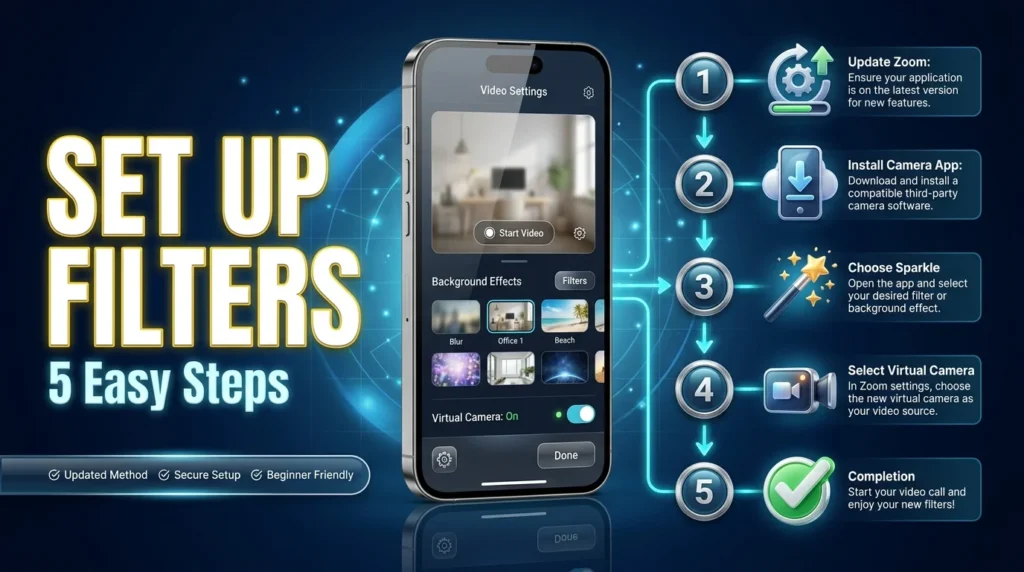
Step 1: Update Your Zoom Version
It is critical to update your zoom version first before implementing the below-mentioned tweaks. This way, your camera enhancements and virtual camera will run smoothly on the latest zoom version.
Step 2: Download A Reliable Webcam App
It is essential to download a reliable webcam or virtual camera application with built-in editing tools. It is best to install it from its original source to avoid getting an old version of the software.
Step 3: Pick Your Desired Visual Effect
You need to open your preferred application and click on the effects tab to choose your desired zoom virtual camera visual effect. In most cases, apps provide you with a live preview of how your chosen effects will appear during calls.
Step 4: Open Zoom And Choose The Virtual Camera
Click on the “Open Zoom” tab to open the program. Then, go to settings, click on Video, and select your preferred zoom virtual camera. As a result, your chosen effects will appear on your preview camera.
Step 5: Join Your Conference
Once everything is ready, it is time to join your conference. Note that the effects will be visible to all participants. In addition, some online conferencing tools allow you to change filters without closing your meeting tab.
Common Problems and How to Fix Them
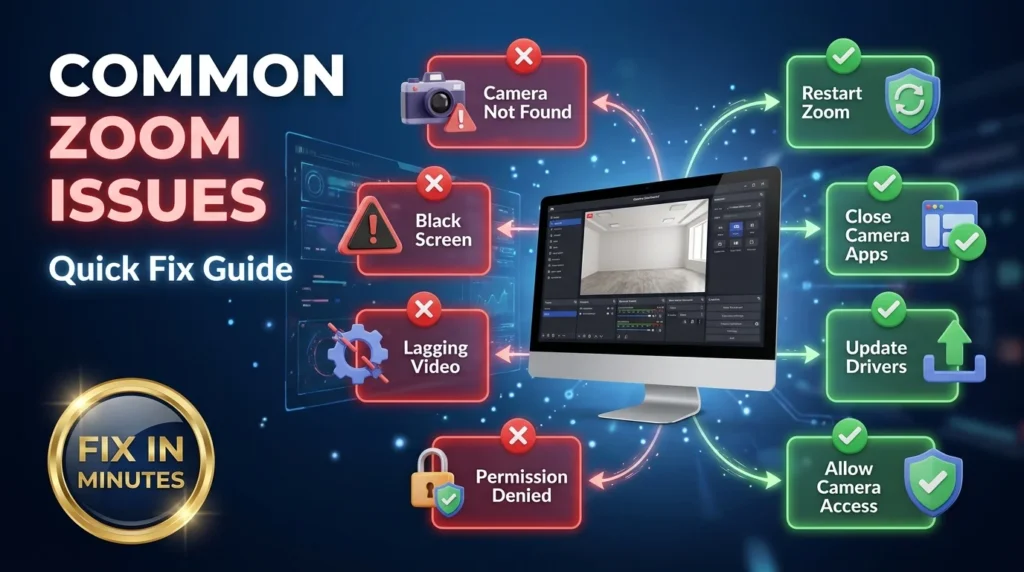
Even with modern virtual camera software, you may occasionally run into issues. Most problems can be solved in just a few minutes.
Zoom Can’t Detect the Virtual Camera
Make sure that your camera is opened before you open Zoom for the first time. If you have opened the program Zoom was closed after, close the application completely and then re-open it. It is important to note that if you are using an old version of Zoom there is a chance that it will not recognize a new virtual camera driver.
Black Screen or Frozen Video
Having a black screen often means that some other applications are using your camera. Make sure that the applications such as Microsoft Teams, Google Meet, Discord, Skype or any other software which requires access to your webcam are not open. It is also possible that the browser is using your camera, Close it and then re-open your camera application and Zoom.
Filters Are Lagging
Using any visual effect on the camera increases the video processing time. If you are having issues with lagging video, try the following tips:
- Close all the unnecessary applications.
- Reduce the resolution if it is possible.
- Update your graphic drivers.
- Use Ethernet for a stable connection.
- Camera Permission Problems
Most Operating Systems such as Windows or Mac OS require authorization before granting access to any other applications.
If Zoom or your virtual camera is not working properly, Navigate to your Privacy Settings and make sure that Camera is turned on. Give access to Zoom and your camera application.
Snap Camera vs Modern Alternatives
Although many people still search for Snap Camera, newer solutions provide a better experience.
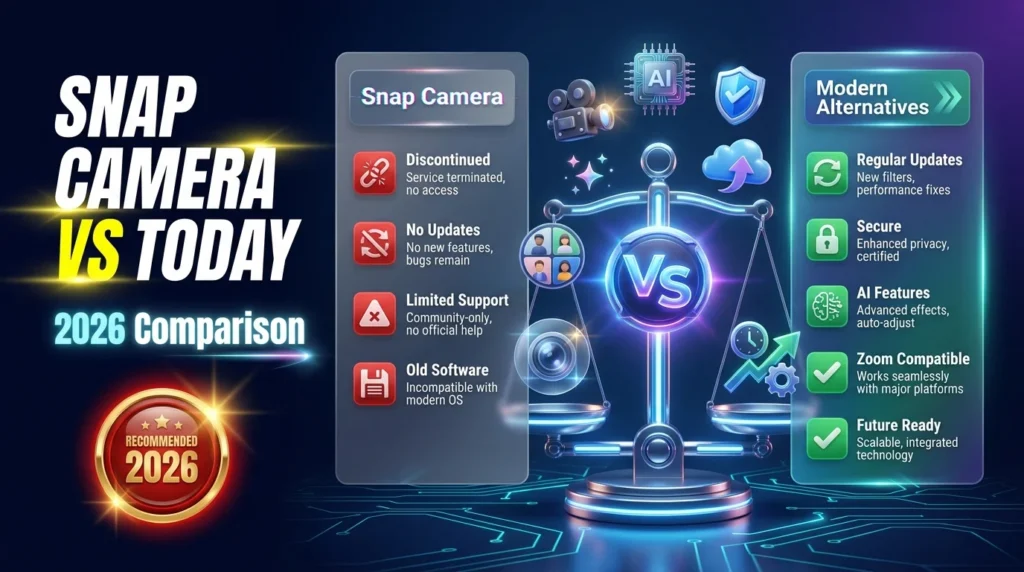
| Feature | Snap Camera (Discontinued) | Modern Alternatives |
| Official Support | ❌ No | ✅ Yes |
| Security Updates | ❌ No | ✅ Regular Updates |
| Works with Latest Zoom | Limited | ✅ Yes |
| New Features | ❌ No | ✅ Frequently Added |
| Recommended in 2026 | ❌ No | ✅ Yes |
For most users, modern virtual camera software is the safer and more reliable choice.
Tips for Better Zoom Video Calls
Using filters can improve your appearance, but good video quality depends on more than just camera effects. These simple tips can help you look your best during every meeting.
Use Good Lighting
If you can, make sure to use natural light. If you cannot, make sure to have a desk lamp in front of you, not behind you, so that it doesn’t cast a shadow
Position the Camera Correctly
You should have the camera positioned at eye level so that you have the best view of your participants.
Make Sure the Background is Clean
Even if you have a cool background, it’s best to keep your actual background clean and free of clutter.
Test Your Setup Before Calling Someone
If you have a few minutes, make sure you open up Zoom and test your camera, microphone and effects before you call someone.
Update Regularly
It is important to make sure you update Zoom, your computer, drivers, and virtual camera if you have one, regularly.
Make Sure You’re Not Using Too Many Filters
Filters are fun for social calls or meetings, but in a work or professional meeting it’s best to stick to subtle appearance changes or use the touch up option that comes with Zoom.
Conclusion
If you are searching for a way how to use Snapchat filters on Zoom in 2026, you should forget about old guides and tutorials because the official application Snap Camera has already been discontinued. You still can enjoy filters and effects from Snapchat on your video calls using the Zoom application or other virtual cameras as well as online tools updated every year. Any of these modern ways will suit for viewing online classes, video conferences, webinars, and other activities. So you can make your meetings more fun by applying simple effects without hurting the quality of your video. All you need to do is to follow the given guidelines and use any of the mentioned below methods to use Snapchat filters on Zoom in 2026.
Frequently Asked Questions
Can I download this program in 2026?
The application was discontinued in 2023 and is no longer supported by the company Snapchat. Avoid using unofficial versions of the software in case they are misleading or unsafe.
Is it possible to use Snapchat filters on Zoom via cell phone?
It is not possible to do so directly. The virtual camera apps’ main purpose is to be used on a computer. The official mobile application for Zoom does not have this functionality.
Does zoom have filters?
Yes, it does. You can easily add appearance filters, avatars, virtual backgrounds, apply studio quality effects and lighting.
Does zoom have filters so that everyone can see it?
Yes, it does. Whatever you add through the virtual camera will appear on all participants’ screens on Zoom.
Are virtual camera apps safe to download?
Yes, if you download it from an official source. Avoid using unofficial software for discontinued programs, since they might have malicious code or be out of date.
Can you edit filters in the middle of a Zoom meeting?
It depends on the application’s options. Some virtual camera apps allow you to edit and switch filters in the middle of a meeting.